

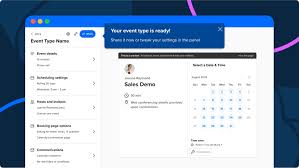
Calendly System Setup
Helpful Guide for This Project: https://youtu.be/PNp2uUKCMuQ
Client: CloudMita Consultancy LTD
Platform: Calendly
Meeting Location: Google Meet
PART 1: Basic Account Configuration
Before creating events, students must:
- Connect Google Calendar
- Enable Google Meet as the default meeting location
- Ensure time zone is correctly configured
- Set availability (e.g., Mon–Fri, 9am–4pm)
You should verify:
- Google Meet links are automatically generated
- Availability rules are working correctly
PART 2: Create Event Types
Students must create the following two event types:
One-on-One Event
Event Name: Consultation Session – CloudMita
Duration: 30 minutes
Location: Google Meet
Description:
A private consultation session with a CloudMita Consultant.
Group Event
Event Name: Cloud Strategy Group Session
Duration: 45 minutes
Location: Google Meet
Maximum Invitees: 5 (or any defined number)
Description:
A collaborative group consultation session hosted by CloudMita Consultancy LTD.
PART 3: Add Contacts (Invitees for Testing)
Students must create bookings for:
- Francis – freztravz@gmail.com
- Susan – Susanbagby12@gmail.com
They should:
- Book Francis into the One-on-One event
- Book Susan into the Group event
(or vice versa — but both event types must be tested)
PART 4: Create Workflows (Automation)
Students must create four separate workflows inside Calendly.
Workflow 1 – Host Reminder
- Trigger: Before event starts
- Timing: 30 minutes before
- Recipient: Host
- Type: Email notification
Workflow 2 – Customer Reminder
- Trigger: Before event starts
- Timing: 25 minutes before
- Recipient: Invitee
- Type: Email reminder
Workflow 3 – Booking Confirmation Appreciation
- Trigger: After event is booked
- Timing: 30 minutes after booking
- Recipient: Invitee
- Message Content:
A short thank-you message for scheduling with CloudMita Consultancy LTD.
Workflow 4 – Post-Event Thank You
- Trigger: After event ends
- Timing: 15 minutes after event
- Recipient: Invitee
- Message Content:
Thank them for attending and optionally encourage follow-up.
PART 5: Final Deliverables (What They Must Submit to You)
To properly assess them, request:
- Screenshot of:
- Event Types page (showing both events)
- Workflow page (showing all 4 workflows active)
- Screenshot of:
- A booked One-on-One event
- A booked Group event
- Screenshot showing:
- Google Meet link generated automatically
- Copy of one workflow email content
Project Submission Link: Click here to Submit